Selenium WebDriver, as the name suggests, uses a driver object to drive the web. Here, the web means the internet, and since it is the internet, it is done through a browser installed on the local system. The actions may vary from a simple click to filling out the form on the web page. Selenium WebDriver provides a ton of browser commands to achieve the target that ultimately become part of the test suite. This post explores the most common Selenium browser commands to get you started.
Selenium WebDriver Browser Commands
Selenium browser commands come as methods embedded in Selenium WebDriver. If you have already downloaded Selenium and configured it on your local machine, all we need is to open the IDE and initiate a driver object as shown in the following image:
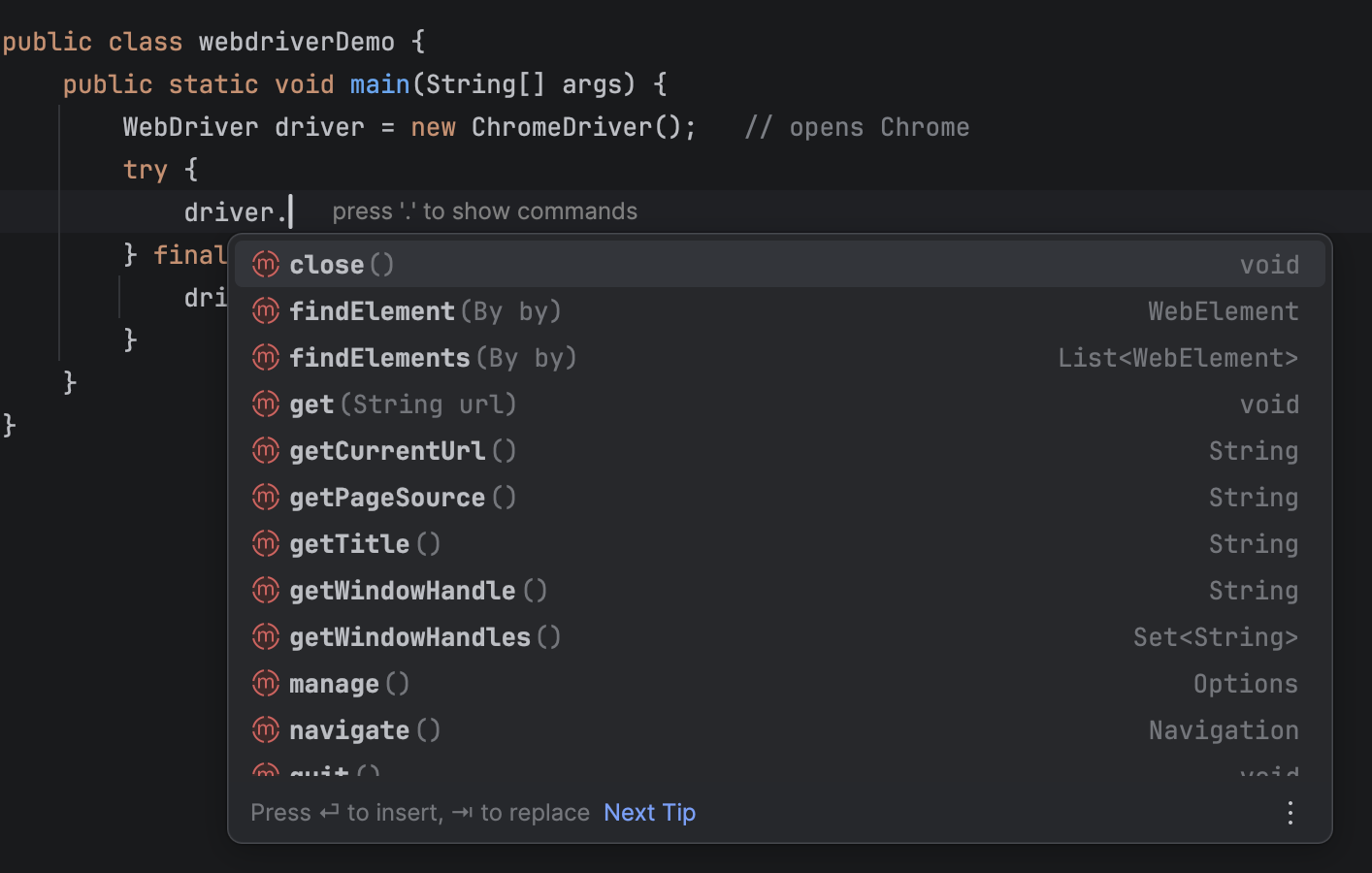
As seen in the image, the IDE provides a list of methods associated with Selenium WebDriver that includes browser commands. Each command comes as a method through which an action will be performed. It is important to understand the meaning of all the parts that constitute the method.
For instance, let's take the get() method, which is one of the browser commands.
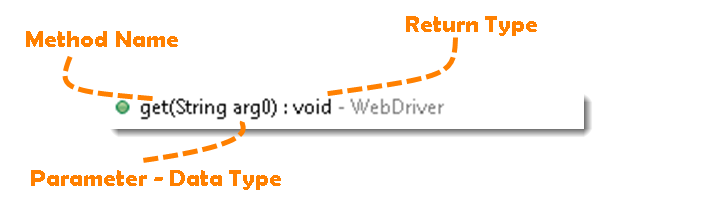
It can be dissected into the following elements:
- Method Name: To access any method of any class, we need to create an object of a class and then all the public methods will appear for the object.
- Parameter: It is an argument that is passed to a method as a parameter to perform some operation. Every argument must be passed with the same data type. For e.g. get(String arg0) : void. This is asking for a String type argument.
- Return Type: Method can return a value or returning nothing (void). If the void is mentioned after the method, it means the method is returning no value. And if it is returning any value, then it must display the type of the value for e.g. getTitle() : String.
Now it would be very easy to understand the WebDriver commands. The very first thing you like to do with Selenium is to Open a new browser, *** Perform *** a few tasks, and Close the browser. Below are the number of Selenium WebDriver Browser commands you can use to open a browser and perform actions.
get() command - How to Open a WebPage in Selenium?
get(String arg0): void - This method Load a new web page in the current browser window. Accepts String as a parameter and returns nothing.
Command - driver.get(appUrl);
Where appUrl is the website address to load. It is best to use a fully qualified URL.
driver.get("https://www.google.com");

//Or can be written as

String URL = "https://www.DemoQA.com";
driver.get(URL);
getTitle() Browser Command - How to get the Title of the Webpage using Selenium WebDriver?
getTitle(): String - This method fetches the Title of the current page. Accepts nothing as a parameter and returns a String value.
Command - driver.getTitle();
As the return type is a String value, the output must be stored in String object/variable.
driver.getTitle();

//Or can be used as

String Title = driver.getTitle();
getCurrentUrl() Command - How to read the URL of the Webpage in Selenium?
getCurrentUrl(): String - This method fetches the string representing the Current URL which is opened in the browser. Accepts nothing as a parameter and returns a String value.
Command - driver.getCurrentUrl();
As the return type is a String value, the output must be stored in a String object/variable.
driver.getCurrentUrl();

//Or can be written as

String CurrentUrl = driver.getCurrentUrl();
getPageSource() Command - How to read the page source of the WebPage in Selenium?
getPageSource(): String - This method returns the Source Code of the page. Accepts nothing as a parameter and returns a String value.
Command - driver.getPageSource();
As the return type is a String value, the output must be stored in a String object/variable.
driver.getPageSource();

//Or can be written as
String PageSource = driver.getPageSource();
close() Command - How to close the Browser using Selenium WebDriver?
close(): void - This method closes only the current window the WebDriver is currently controlling. Accepts nothing as a parameter and returns nothing.
Command - driver.close();
Quit the browser if it's the last window currently open.
driver.close();
quit() Command - How to close all the browser windows in Selenium?
quit(): void - This method Closes all windows opened by the WebDriver. Accepts nothing as a parameter and returns nothing.
Command - driver.quit();
Closes every associated window.
driver.quit();
Note: Important to note that this Selenium WebDriver Browser command will only close the browser window opened by Selenium in the same session. If any browser is opened manually, this will have no impact on it. Also, there is no impact on the browsers opened in another Selenium run or session. The same is true with the close() method as well.
Selenium WebDriver Browser Command - Practice Exercises
Practice Exercise - 1
- Launch a new Chrome browser.
- Open https://www.demoqa.com
- Get Page Title name and Title length
- Print Page Title and Title length on the Eclipse/IntelliJ Console.
- Get Page URL and verify if it is a correct page opened
- Get Page Source (HTML Source code) and Page Source length
- Print Page Length on Eclipse Console.
- Close the Browser.
Solution
package automationFramework;

import org.openqa.selenium.WebDriver;
import org.openqa.selenium.chrome.ChromeDriver;

public class WebDriverCommands {

	public static void main(String[] args) {

		String driverExecutablePath = "D:\\Drivers\\chromedriver.exe";
		System.setProperty("webdriver.chrome.driver", driverExecutablePath);
		// Create a new instance of the Chrome driver
		WebDriver driver = new ChromeDriver();

		// Storing the Application Url in the String variable
		String url = "https://www.demoqa.com";

		//Launch the ToolsQA WebSite
		driver.get(url);

		// Storing Title name in the String variable
		String title = driver.getTitle();

		// Storing Title length in the Int variable
		int titleLength = driver.getTitle().length();

		// Printing Title & Title length in the Console window
		System.out.println("Title of the page is : " + title);
		System.out.println("Length of the title is : "+ titleLength);

		// Storing URL in String variable
		String actualUrl = driver.getCurrentUrl();

		if (actualUrl.equals(url)){
			System.out.println("Verification Successful - The correct Url is opened.");
		}
		else {
			System.out.println("Verification Failed - An incorrect Url is opened.");

			//In case of Fail, you like to print the actual and expected URL for the record purpose
			System.out.println("Actual URL is : " + actualUrl);
			System.out.println("Expected URL is : " + url);
		}

		// Storing Page Source in String variable
		String pageSource = driver.getPageSource();

		// Storing Page Source length in Int variable
		int pageSourceLength = pageSource.length();

		// Printing length of the Page Source on console
		System.out.println("Total length of the Pgae Source is : " + pageSourceLength);

		//Closing browser
		driver.close();
		}

	}
Output
Title of the page is : ToolsQA Demo Site – ToolsQA Length of the title is : 50 Verification Failed - An incorrect Url is opened. Actual URL is : http://shop.demoqa.com/ Expected URL is : http://www.shop.demoqa.com Total length of the Pgae Source is : 88952
Practice Exercise - 2
- Launch a new Chrome browser.
- Open ToolsQA Practice Automation Page for Switch Windows: https://demoqa.com/browser-windows/
- Use this statement to click on a New Browser Window button "driver.findElement(By.id("New Browser Window")).click();"
- Close the browser using close() command
You will notice that only one window will close. Next time use quit() command instead of close(). At that time selenium will close both the windows.
package automationFramework;

import org.openqa.selenium.WebDriver;
import org.openqa.selenium.chrome.ChromeDriver;

public class WebDriverCommands_2 {

	public static void main(String[] args) {


		String driverExecutablePath = "D:\\Drivers\\chromedriver.exe";
		System.setProperty("webdriver.chrome.driver", driverExecutablePath);
		// Create a new instance of the FireFox driver
		WebDriver driver = new ChromeDriver();

		// Storing the Application Url in the String variable
		String url = "https://demoqa.com/browser-windows/";

		//Launch the ToolsQA WebSite
		driver.get(url);


	}

}