So far in our Selenium Learning journey, we have done WebDriver Commands and Navigation Commands. In this chapter, we will be identifying the different *** WebElements *** on webpages and performing various actions on them using Selenium WebDriver. This chapter is all about Selenium WebDriver WebElement Commands. But before running the WebElement commands, it is essential to know what WebElements are and their importance in the web world.
What is A Selenium WebElement?
A web page is made of multiple HTML elements through which a user interacts with the page. These interactions include clicking, retrieving text, typing text into it, fetching the associated class, tags, etc. These elements are termed WebElements, and when it comes to automation, Selenium performs these tasks in place of users.
When we say Selenium WebElement, we generally mean Selenium WebElement commands that help us interact with WebElements. These commands will interact with any element that has the following structure:
<tag> content </tag>
These elements can also be nested as shown below:
<html>
	<body>
		<h1> My First Heading </h1>
		<p> My first paragraph. </p>
	</body>
</html>
However, they can also be standalone. In the above code snippet, the innermost WebElements are h1 and p, referring to the heading and paragraph tags, respectively. If we had to interact with any of these elements, such as <p>, the Selenium WebElement command getText() would be able to fetch the text, "My first paragraph", from the tag. Other commands could be used for other interactions as well.
Syntax of Selenium WebElement
WebElement in Selenium commands will usually look like this:
WebElement element = driver.findElement(By.id(“address“));
This command can be dissected into different sections for better understanding.
- WebElement: This refers to the WebElement class in Selenium.
- element: An object of the WebElement class created for method calling.
- driver: This is the Selenium WebDriver class object about which we talked in detail in Selenium WebDriver Browser Commands.
- findElement: A method used for finding WebElements on a web page.
- By.id(“address“): Identifier used as "id" here to find an element with an id value of "address".
Once the command is executed, it returns either the target element or null/void if no such element exists. It is important to note here that there are no specific actions for specific WebElements in Selenium. All the commands can be used to perform actions on all the WebElements, whether it is valid or not. For e.g., the ***clear() command *** can be applied to a hyperlink (the <a> tag) as well. It may return an error or null/void.
Now we can move to the list of Selenium WebElement commands and see what actions are associated with them.
List of Selenium WebElement Commands
The following WebElement commands are available in the Selenium library.
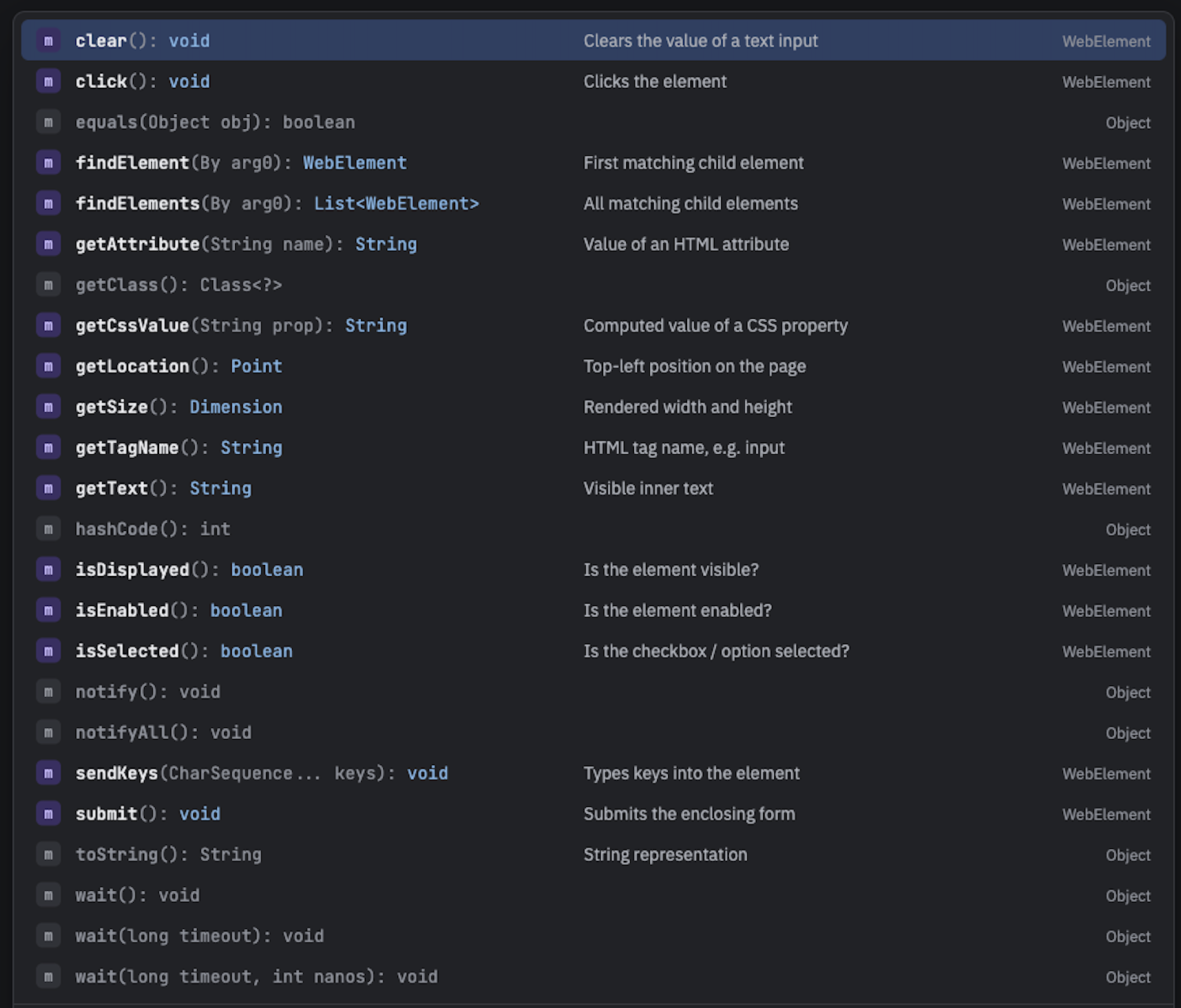
Note: Methods followed by the Object keyword are the generic methods obtained from the Object Class in Java. You will find these methods for every object in the Java language.
clear() Command
If this element is a text entry element, this will clear the value. This method accepts nothing as a parameter and returns nothing.
Syntax:
element.clear();
This method has no effect on other elements. Text entry elements are INPUT and TEXTAREA elements.
Example:
WebElement element = driver.findElement(By.id("UserName"));
element.clear();
sendKeys() Command
This method simulates typing text into an WebElement, assuming that the element is editable. This method accepts CharSequence as a parameter and returns nothing.
Syntax
element.sendKeys("text");
This method works with text entry elements like INPUT and TEXTAREA elements.
Example
WebElement element = driver.findElement(By.id("name"));
element.sendKeys("ToolsQA");
The above code types "ToolsQA" into a WebElement that has the id "name".
click() Command
This Selenium WebElement command simulates clicking any element on the webpage, assuming that the element is clickable. It accepts no parameters and returns nothing.
Syntax
element.click();
Clicking is perhaps the most common way of interacting with web elements like text elements, links, radio boxes, and many more.
WebElement element = driver.findElement(By.linkText("ToolsQA"));
element.click();
The above code clicks a WebElement with the text as ToolsQA.
Note: Most of the time, we click on the links, and it causes a new page to load; this method will attempt to wait until the page has loaded properly before handing over the execution to the next statement. But if click() causes a new page to load via an event or is triggered by a native event (for example, through JavaScript), then the method will not wait for it to load.
There are some preconditions for an element to be clicked. The WebElement must be visible and have a height and width greater than 0.
isDisplayed() Command
This Selenium WebElement method determines if an element is currently being displayed on the webpage. It accepts nothing as a parameter but returns a boolean value(true/false). If the element is not present, a NoSuchElementFound exception is thrown.
Syntax
element.isDisplayed();
Example
WebElement element = driver.findElement(By.id("UserName"));
boolean status = element.isDisplayed();
*Note: If the element is present but is marked "hidden" on the webpage, the method will return False instead of throwing an exception.
isEnabled() Command
This Selenium WebElement command determines if the element currently is enabled or not. This accepts nothing as a parameter but returns boolean value. True, if the element is enabled, false otherwise.
Syntax
element.isEnabled();
Example
WebElement element = driver.findElement(By.id("userName"));
boolean status = element.isEnabled();
// Check that if the text field is enabled, if yes, enter value
if(status){
    element.sendKeys("ToolsQA");
}
isSelected() Command
This command or method determines whether or not this element is selected. This accepts nothing as a parameter but returns a boolean value. True if the element is selected, false otherwise.
Syntax
element.isSelected();
Since this method checks a selected element, it only applies to input elements such as checkboxes, select options, and radio buttons.
Example
WebElement element = driver.findElement(By.id("Sex-Male"));
boolean status = element.isSelected();

//Or can be written as

boolean staus = driver.findElement(By.id("Sex-Male")).isSelected();
Note: In the later chapters of Check Box & Radio Buttons and Drop Down & Multiple Selects, we have covered many examples around it.
submit() Command
This method works better than the click() method if the current WebElement is a form, or an element within a form. This accepts nothing as a parameter and returns nothing.
Syntax
element.submit();
If the action of submit causes the current page to change, then this method will wait until the new page is loaded.
Example
WebElement element = driver.findElement(By.id("SubmitButton"));
element.submit();
getText() Command
The getText() method will fetch the visible (i.e., not hidden by CSS) text, including the innerText of the elements. It accepts no parameters and returns a String value. A good example is to fetch the text of labels and error messages to assert.
Syntax:
element.getText();
This returns the innerText of the element, including sub-elements, without any leading or trailing whitespace.
Example
WebElement element = driver.findElement(By.xpath("anyLink"));
String linkText = element.getText();
getTagName() Command
This Selenium WebElement method gets the tag name of this element. This method accepts no parameters and returns a String value.
Syntax
element.getTagName();
This does not return the value of the name attribute but the tag of the element. For ex, if an element is <input name="foo"/>, the getTagName() command will return "input", not "foo".
Example
WebElement element = driver.findElement(By.id("SubmitButton"));
String tagName = element.getTagName();
getCssValue() Command
This method fetches the CSS property value of the given element. This accepts no parameters and returns a String value.
Syntax
element.getCssValue();
It is important to make note of two things here: Color values should be returned as rgba strings. For example, if the background-color property is set as "green" in the HTML source, the returned value will be "rgba(0, 255, 0, 1)".
Since DOM CSS2 specifications prohibits, shorthand CSS properties (e.g., font, background, border, margin, border-top, margin-top, padding, padding-top, outline, list-style, pause, cue) are not returned
getAttribute() Command
This Selenium WebElement command gets the value of the given attribute of the element. An attribute can be id, name, class, etc. that gets embedded into the tag. This method will provide the value assigned to the target attribute. This accepts String as a parameter and returns a String value.
Syntax
element.getAttribute();
Example
WebElement element = driver.findElement(By.id("SubmitButton"));
String attValue = element.getAttribute("id"); //This will return "SubmitButton"
getSize() Command
The getSize() method in Selenium fetches the width and height of the rendered element. This doesn't require a parameter and returns the Dimension object.
Syntax
element.getSize();
This returns the size of the target WebElement on the page.
Example
WebElement element = driver.findElement(By.id("SubmitButton"));
Dimension dimensions = element.getSize();
System.out.println(“Height :” + dimensions.height + ”Width : "+ dimensions.width);
getLocation() Command
This method points out the location of the element on the page. This accepts nothing as a parameter but returns the Point object.
Syntax
element.getLocation();
This returns the Point object, from which we can get the X and Y coordinates of a specific WebElement.
Example
WebElement element = driver.findElement(By.id("SubmitButton"));
Point point = element.getLocation();
System.out.println("X cordinate : " + point.x + "Y cordinate: " + point.y);
Conclusion
WebElements are the building blocks of every web page, and Selenium’s WebElement commands give testers precise control over them. In this article, we explored action commands like click(), sendKeys(), clear(), and submit() that mimic real user behavior; state checks such as isDisplayed(), isEnabled(), and isSelected() that validate an element’s condition; and information-retrieval methods like getText(), getTagName(), getAttribute(), getCssValue(), getSize(), and getLocation(). Mastering these commands lays the foundation for reliable, readable automation scripts. With this knowledge in place, we’re ready to learn how to locate elements effectively in the next chapter, Find Element and Find Elements in Selenium.